Remote development on Sherlock#
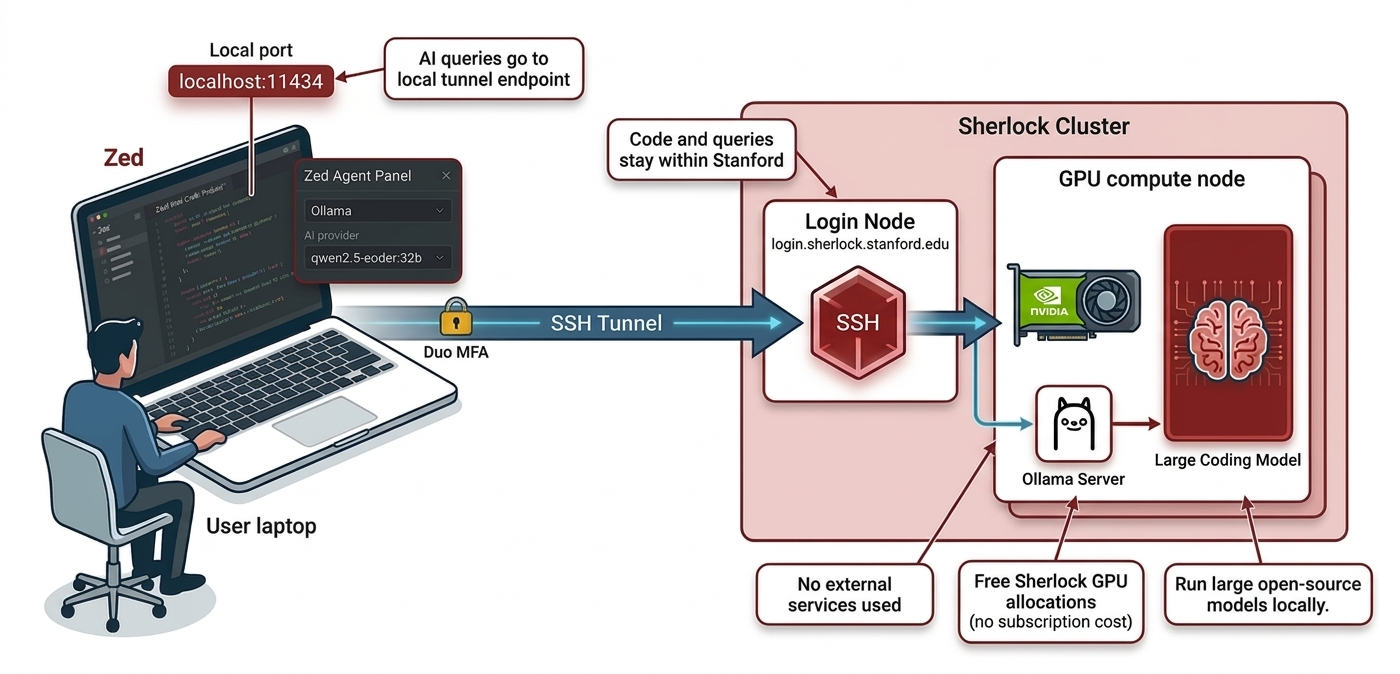
Zed is a high-performance, open-source code editor that supports working on remote projects over SSH: Zed runs on your local machine while reading and writing files directly on Sherlock. Pair it with an Ollama server on a Sherlock GPU node and you also get AI-assisted coding without any code or prompts leaving Stanford.
Zed is available on macOS, Linux and Windows
See the Zed download page for installation instructions on your platform.
Remote project access#
Zed's Remote Development feature connects to a Sherlock login node over SSH. Open a remote project via File › Open Remote Project, enter login.sherlock.stanford.edu, and select your project directory. Zed installs its server component on the login node on the first connection.
From that point, files open, save, and search on Sherlock as if they were local, and you can open a terminal in Zed that runs directly on the login node.
AI features with Ollama#
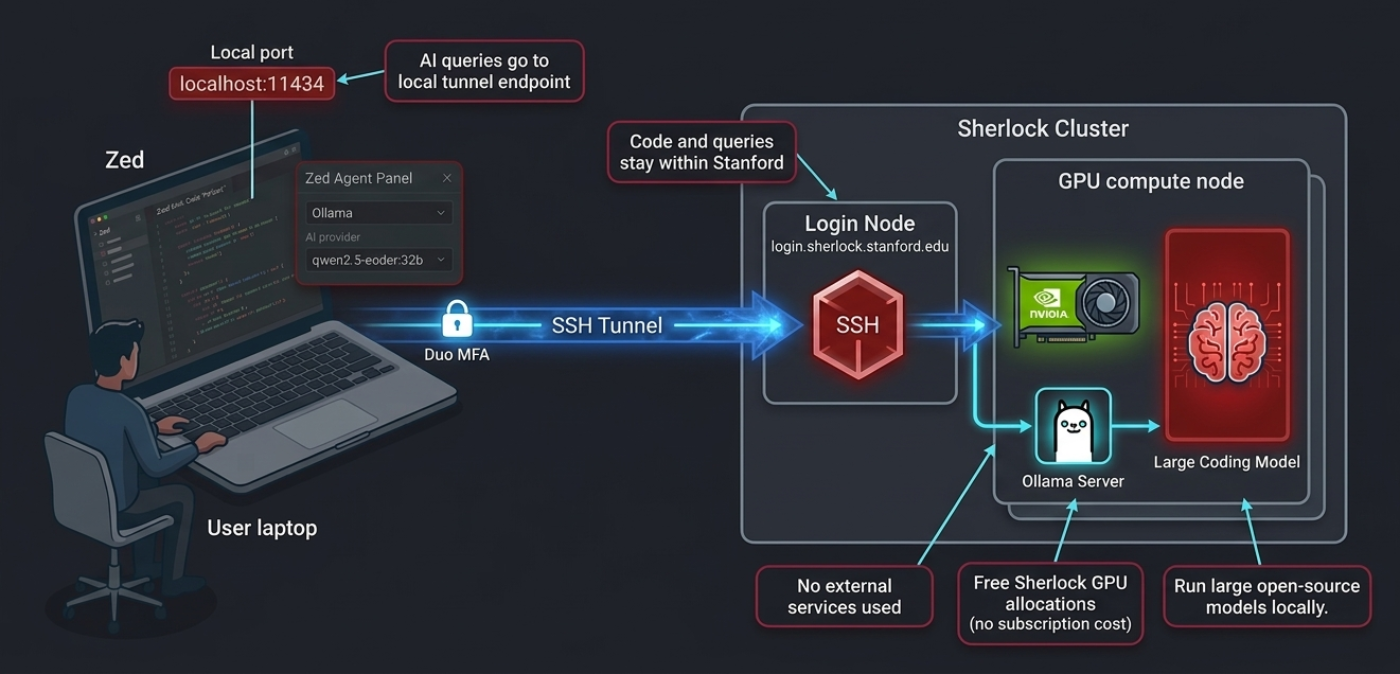
Adding an Ollama server gives Zed's AI assistant a local model to talk to. Your code and queries travel to Sherlock over SSH and never reach external services. Sherlock GPU allocations are free, and large open-source coding models (32B+) are available at no subscription cost.
| Tool | Subscription required | Code stays within Stanford? |
|---|---|---|
| GitHub Copilot | ||
| Cursor | ||
| Zed + Ollama on Sherlock |
The setup for AI features takes three steps, done once per session:
- Submit a Slurm job that starts an Ollama server on a GPU node
- Open an SSH tunnel from your local machine to that node
- Configure Zed to use the tunnel as its Ollama endpoint
After that, Zed's AI features work as if Ollama were running locally.
Prerequisites#
- Install Zed on your local machine
- A Sherlock account
Starting Ollama on Sherlock#
Use the Ollama server job script to start an Ollama server on a GPU node. Once the job is running, retrieve the endpoint from your local machine:
Choosing a model
For coding assistance, we recommend models from the qwen2.5-coder or codellama families. Larger models (32B+) give better results but require more GPU memory. For a faster, lighter option, qwen2.5-coder:7b works well on 24GB GPUs.
See the Ollama page for instructions on pulling and managing models.
Setting up the SSH tunnel#
The Ollama server runs on a compute node that is not directly reachable from outside Sherlock. An SSH tunnel forwards a local port on your machine through the login node to the compute node.
Use the endpoint from ~/.ollama_server to open the tunnel from your local machine:
For example, with the output above:
The -fN flags put the tunnel in the background without opening a shell. You will be prompted for your password and Duo second factor as usual.
Verify the tunnel is working by querying the Ollama API from your local machine:
Avoiding repeated Duo prompts
If you open multiple tunnels or sessions during a work session, you can avoid authenticating each time by enabling SSH connection multiplexing. See the Advanced connection options page for details.
The tunnel must be restarted when the job restarts
When your Ollama job ends (or is resubmitted), the compute node and port will change. Kill the old tunnel (pkill -f "ssh -fNL 11434") and start a new one with the updated connection details from the new job output.
Configuring Zed#
Selecting Ollama as the AI provider#
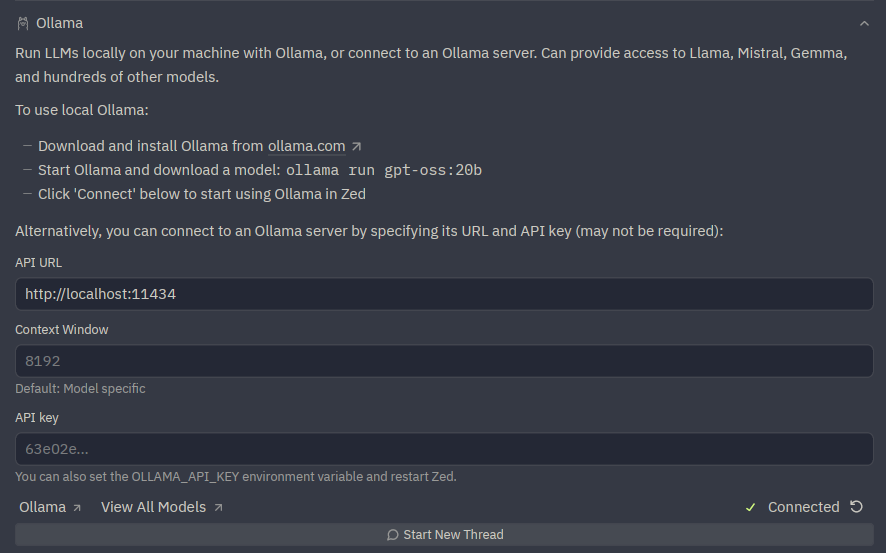
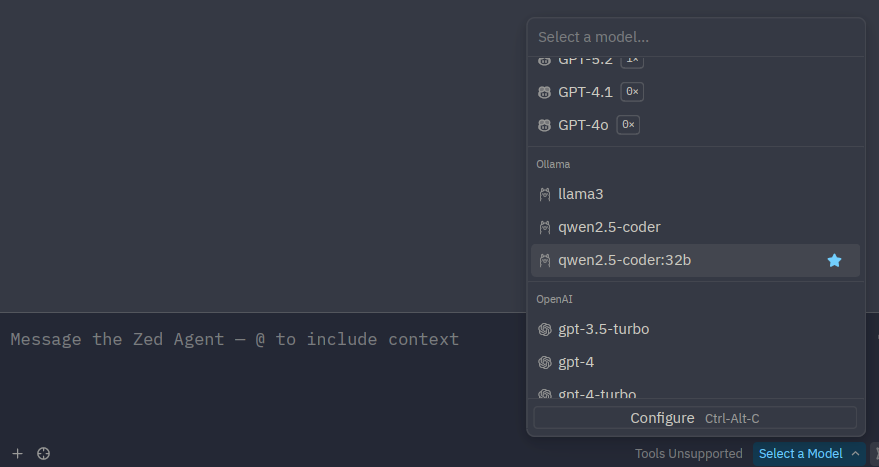
Open the Zed agent panel via View › Agent Panel. Click the model selector at the top of the panel, choose Ollama, and select the model you loaded on Sherlock.
Since the tunnel forwards to the default Ollama port (11434), Zed connects to it automatically without any URL configuration.
Alternatively, open settings.json (Cmd+Alt+, on macOS, Ctrl+Alt+, on Linux) and add:
{
  "assistant": {
    "version": "2",
    "default_model": {
      "provider": "ollama",
      "model": "qwen2.5-coder:32b"
    }
  }
}
Replace qwen2.5-coder:32b with whichever model you have loaded on Sherlock.
Edit predictions#
Zed's inline edit predictions can also be backed by Ollama. In settings.json, add:
For inline completions, a smaller, faster model (e.g. qwen2.5-coder:7b) works better than a large one, since latency matters more than raw quality for character-by-character suggestions.
Usage#
With the tunnel up and Zed configured:
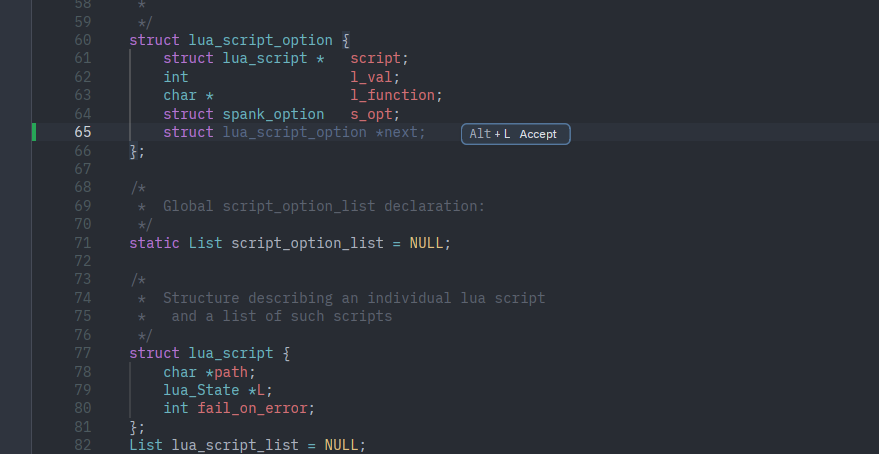
- the agent panel (View › Agent Panel) lets you chat with the model, ask questions about your code, or request explanations and refactors
- inline assistance (Ctrl+Enter) transforms selected code in place
- edit predictions suggest completions as you type, accepted with Tab
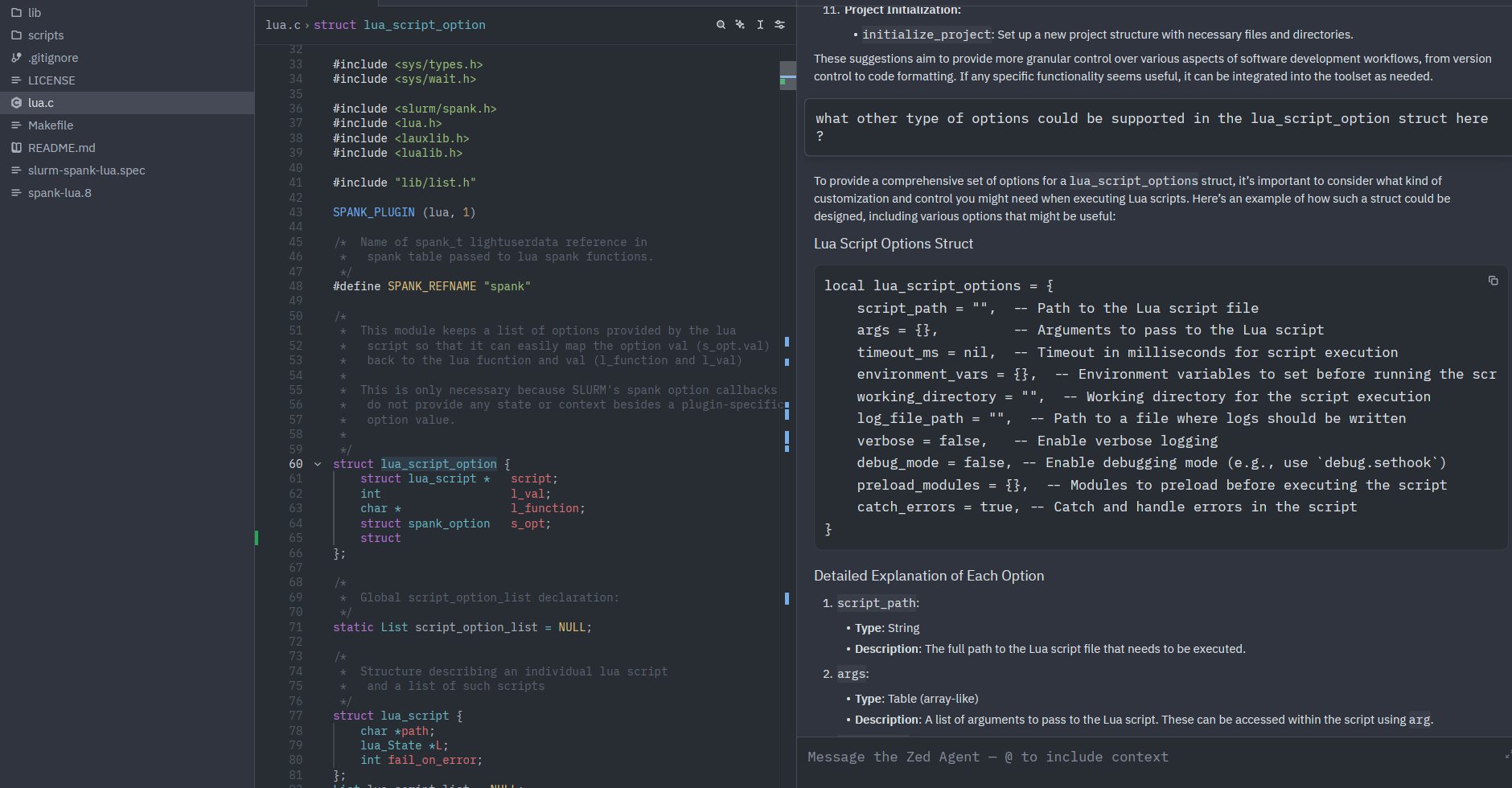
None of your prompts, code, or completions leave Stanford's infrastructure.
Troubleshooting#
If Zed cannot reach the Ollama server, check the server logs in the job output file:
Or follow them in real time while the job is running:
Common things to look for:
- Model not loaded: the server starts but no model is pulled yet. Load one with
OLLAMA_HOST=<node>:<port> ollama pull qwen2.5-coder:7bfrom an interactive session on Sherlock. - Port conflict: the port-selection loop in the script handles this, but if the job output shows a bind error, cancel and resubmit the job.
- Tunnel not running: verify with
curl http://localhost:11434/api/tags(a connection error means the tunnel is down or has been interrupted). - Job ended: check with
squeue -u $USERthat the job is still running. If it has ended, resubmit and restart the tunnel.